Showing posts with label ArcGIS. Show all posts

Sunday, October 26, 2014

Configure Eclipse for Arcobjects SDK for Java

Configure Eclipse for Arcobjects SDK for Java

This post will guide you on how to instal and configure arcobjects sdk for java.

After installing you’ll get the folder of DeveloperKit10.2 in C:\Program Files (x86)\ArcGIS\DeveloperKit10.2 or whatever your installed directory is.
  
Now install Eclipse ide after Eclipse is installed we have to import the arcobjects library or install it into eclipse.
Open Eclipse
Go to Help à Install New Software à Click on the Add button


In Name Enter Arcobjectslibrary à click on Local button and select the path
C:\Program Files (x86)\ArcGIS\DeveloperKit10.2\java\tools\eclipse_plugin\arcgis_update_site\arcobjects
Or whatever your installed directory of ArcGIS is.


And click ok. It will take some time and might give you error that arc gis palette cant be installed So for that you have to install swing in Eclipse first before installing arcobjects.
(Installing Swing and other components is easy Just open eclipse à Help à Instal New Software à click on the drop down and select the site of your eclipse version as in my case its kepler)


Under General Select Swing designer and AWT designer and click install. Now it’ll take some time to install.
After its installed try again installing arcobjects and this time it’ll get installed. How ever if the Pallete does not gets installed then no worries J
Okay now Lets get started

For ArcGIS 10.0 and older versions I’ll recommend you to use 32 bit eclipse and 32 bit Java but for ArcGIS 10.1 or newer it don’t really matter. I am using 10.2 ArcGIS and for that I am using 64 bit eclipse and for Java I am using 64 bit but for eclipse in general but for arc objects you require 32 bit I’ll tell you how you can manage this.
We’ll start by running a small sample to show you how to run it and also to help you cater the basic error which might occur. After that I am going to show you about how to make a basic add in (toolbar button dockable window etc) in ArcObjects for ArcGIS.

ArcObjects Development, Developing Stand Alone GIS Desktop Applications and Developing Addins for ArcGIS Desktop


Develop Addin for ArcGIS Part 1


Develop Addin for ArcGIS Part 2

Develop Addin for ArcGIS Part 2

Develop Addin for ArcGIS Part 2

To see the part 1 click here

In this post we'll develop Add in for ArcGIS.
 We have configured the Eclipse project for Addin Development using Arcobjects and also configured the Java for it.
To configure Project for ArcObject see this post.

We have the project setup for this. you can see the config.xml file in its addin view (we'll talk about the views later). This view helps alot and makes sure the consistency and their are no errors in config file. Through this we can add different buttons, tools, meus, system tools, dockable window, palette etc and also can organize them.
Click on the source tab at the bottom of config.xml and you can see the xml source code.
Click back to addin view.
Add the details of project Name company etc etc What they are ? you can find help regarding this in esri resource help.

http://resources.arcgis.com/en/help/arcobjects-java/concepts/engine/

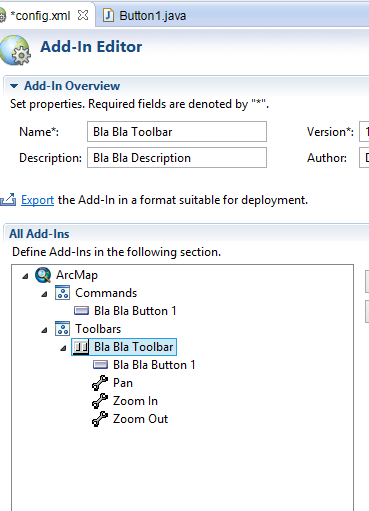
Click on add button and Add the toolbar.
Give name and id. This id will be used in our java classes later.

Add some System tools e.g zoomin, pan etc.

After Adding Click on Toolbars and you'll see that it refreshes it self and you'll see the added system tools are shown under your toolbar.
Now we'll add custom functionality. Click on Add and select button. A new button will be created. you have to add this button to your toolbar explicitly by again selecting the toolbar and adding the new button to right pane.

Fill in the details 

Click on Class button and press finish.

Class will be formed

Enter the following code.

Add the button to toolbar.

You can see the button added to toolbar

On Config.xml press export to add addin to ArcGIS. Now there are different methods to deploy your addin. I will follow the simple approach of direct deploying. 
You can see the list of deploying options and details here
http://resources.arcgis.com/en/help/arcobjects-java/concepts/engine/#/How_to_deploy_your_add_in/0001000006sp000000/

You can give the path of C:\Users\Blabla\Documents\ArcGIS\AddIns\Desktop10.2 and press finish. A warning may appear press ok.

Open ArcMap and click on customize and then click on addins and see the installed addin.
Again click on customize and the click on toolbars and add you toolbar.
You can see our toolbar.

Click on the button and see the Hello World ;)


Develop Addin for ArcGIS Part 1

Develop Addin for ArcGIS Part 1

In this post we'll develop a basic addin for ArcGIS using ArcObjects SDK for Java.

Open Eclipse and Create new project 
File -> New -> Other


Then Select Esri Templates -> ArcGIS Extensions -> Desktop -> ArcMap Add In Project

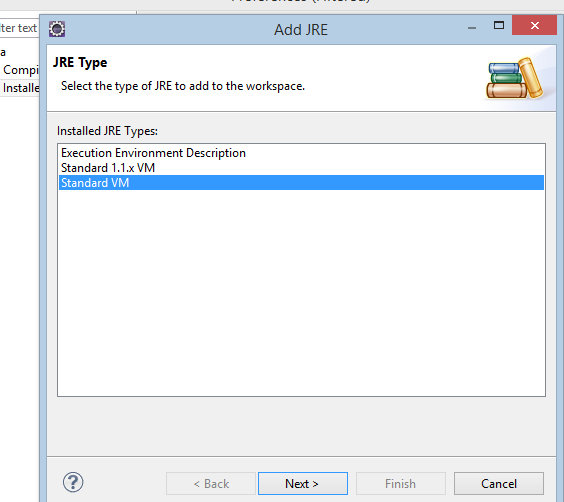
Then On New Addin Project window  and click on Configure JRE (We are going to add ArcObjects compatible JRE to eclipse it comes installed with ArcGIS desktop after that we'll set the execution environment)

Click on Add 

Select Standard VM
Click Next
Click on Directory and enter the name and following path as shown in figure
Click finish
Again click on configure JRE
Select installed JREs and click on execution Environments
Select Java SE 1.6 and Select the previously added JRE (Java ArcGIS)
Click Ok and Click Next
Click on libraries tab
Click Add libraries
Select ArcObjects Libraries 
(for adding Arcobjects library to eclipse see this tutorial)
Click finish
You can see the following on your screen. Everything is configured.

For next part see the next tutorial here

ArcObjects Development, Developing Stand Alone GIS Desktop Applications and Developing Addins for ArcGIS Desktop

ArcObjects Development, Developing Stand Alone GIS Desktop Applications and Developing Addins for ArcGIS

This post is going to discuss what things are required for Developing Stand Alone GIS desktop Applications or for developing Addins (plugins) for ArcGIS.

We'll be using ArcObjects SDK for Java. Esri also facilitates its user by giving a complete detailed resource for SDK. here are some of the important links

http://resources.arcgis.com/en/help/arcobjects-java/concepts/engine/

Why i am writing this post is because of the reason that for beginners this resource will not be of much help. This blog aims to help developers who are in their learning phase. So I'' tell you the basic start up tips for this arcobjects development.

Pre-requisites required :
Basic Understanding of Java
Eclipse IDE configured to be used for arcobject developments
To configure eclipse see this post

Outline:
1. How to check errors, how to enable console of ArcGIS, how to log errors.
3. Develop Stand alone GIS desktop application.
4. Coming Soon 

Sunday, January 26, 2014

Arc GIS tool Development using Python (.Arcpy) Review, Tips

Arc GIS tool Development using Python (.Arcpy) Review, Tips


If you are new to Arcpy, or new to this ArcGIS tool development using python. This Blog is there for starter tips and contains the help material needed. I am writing this blog as when i was given a task to develop a python toolbox of ArcGIS i badly needed a blog like this. When i searched for the help i found the same results on Google i.e. ESRI help Resources page. They are Good but more detail was needed.

When i Started developing i faced two problems
1. Either i have to make it a .pyt toolbox
2. Or i have to make a .tbx toolbox

Now what are they ??
Well they are the two types of toolbox available in arctoolbox. i.e. i have to make one of these.
I then asked people a review about each and the difference between both of these.
I came to knew about that and i have written it in my previous blog also here.(click here to Open)
So i decided to go for .tbx.
I Read this book for the reference
Pimpler, E. 2013 Programming ArcGIS 10.1 with Python Cookbook.
Packt Publishing.


Few Things to Consider:
Python is a language that donot use brackets rather it is based upon indenting. You must be sure about its spacing, as with wrong spacing you would face such errors which will make you angry.

Environment to be used
Selecting Environment of development is based upon individual's ease and proficiency.
However, I used NotePad ++ for writing code and i tested it in ArcGIS through running it. I know some of you will think that if there is a built in utility in ArcGIS for python programming then why i used NotePad++ ?
Well there are certain pros and cons of this utility. I have discussed it in detail here in my previous blog.
you can check that by clicking here.


Monday, January 20, 2014

Difference between pyt and tbx

Difference between pyt and tbx

.Pyt and .Tbx are the two types of ArcGIS tool box developed in python.


Difference of Both is written below. 
.tbx


  • It is the old version of toolbox.
  • There is a graphical interface for defining parameters 
  • Have to Manually Generate text file, i.e. manually have to write code in a text file and save it as .py format. Well I used NotePadd++ for this.
  • Have to write stand alone script.
.pyt
  • It is the new version of toolbox.
  • Even Parameters are defined by coding. there is a positive and negative side of this, positive side is that for the programmers Control is in your hand Define parameters the way you want. where as for newbies this might be difficult, as this is new version of toolbox so not much resources are there on web.
  • Less limitations are there.
  • Interface coding is done in the same file as part of the whole program.


Note: The upper description is not mentioned by any official website, I have learned this by working with both.