Showing posts with label Developing Addin for ArcGIS. Show all posts

Sunday, October 26, 2014

Develop Addin for ArcGIS Part 2

Develop Addin for ArcGIS Part 2

To see the part 1 click here

In this post we'll develop Add in for ArcGIS.
 We have configured the Eclipse project for Addin Development using Arcobjects and also configured the Java for it.
To configure Project for ArcObject see this post.

We have the project setup for this. you can see the config.xml file in its addin view (we'll talk about the views later). This view helps alot and makes sure the consistency and their are no errors in config file. Through this we can add different buttons, tools, meus, system tools, dockable window, palette etc and also can organize them.
Click on the source tab at the bottom of config.xml and you can see the xml source code.
Click back to addin view.
Add the details of project Name company etc etc What they are ? you can find help regarding this in esri resource help.

http://resources.arcgis.com/en/help/arcobjects-java/concepts/engine/

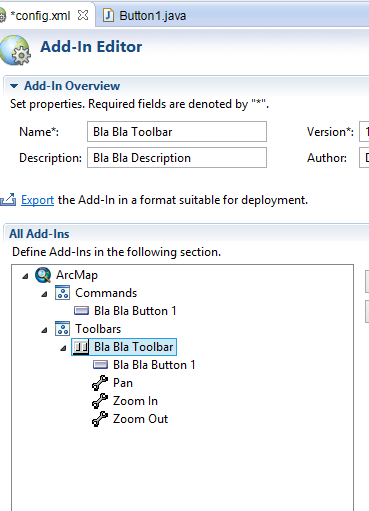
Click on add button and Add the toolbar.
Give name and id. This id will be used in our java classes later.

Add some System tools e.g zoomin, pan etc.

After Adding Click on Toolbars and you'll see that it refreshes it self and you'll see the added system tools are shown under your toolbar.
Now we'll add custom functionality. Click on Add and select button. A new button will be created. you have to add this button to your toolbar explicitly by again selecting the toolbar and adding the new button to right pane.

Fill in the details 

Click on Class button and press finish.

Class will be formed

Enter the following code.

Add the button to toolbar.

You can see the button added to toolbar
On Config.xml press export to add addin to ArcGIS. Now there are different methods to deploy your addin. I will follow the simple approach of direct deploying. 
You can see the list of deploying options and details here
http://resources.arcgis.com/en/help/arcobjects-java/concepts/engine/#/How_to_deploy_your_add_in/0001000006sp000000/

You can give the path of C:\Users\Blabla\Documents\ArcGIS\AddIns\Desktop10.2 and press finish. A warning may appear press ok.

Open ArcMap and click on customize and then click on addins and see the installed addin.
Again click on customize and the click on toolbars and add you toolbar.
You can see our toolbar.

Click on the button and see the Hello World ;)


Develop Addin for ArcGIS Part 1

Develop Addin for ArcGIS Part 1

In this post we'll develop a basic addin for ArcGIS using ArcObjects SDK for Java.

Open Eclipse and Create new project 
File -> New -> Other


Then Select Esri Templates -> ArcGIS Extensions -> Desktop -> ArcMap Add In Project

Then On New Addin Project window  and click on Configure JRE (We are going to add ArcObjects compatible JRE to eclipse it comes installed with ArcGIS desktop after that we'll set the execution environment)

Click on Add 

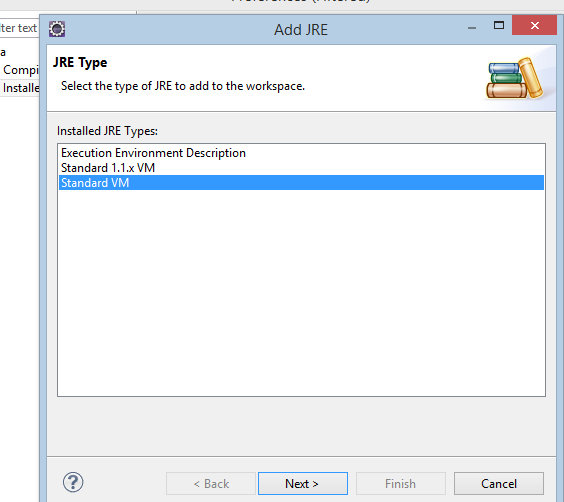
Select Standard VM
Click Next
Click on Directory and enter the name and following path as shown in figure
Click finish
Again click on configure JRE
Select installed JREs and click on execution Environments
Select Java SE 1.6 and Select the previously added JRE (Java ArcGIS)
Click Ok and Click Next
Click on libraries tab
Click Add libraries
Select ArcObjects Libraries 
(for adding Arcobjects library to eclipse see this tutorial)
Click finish
You can see the following on your screen. Everything is configured.

For next part see the next tutorial here